Get more visibility into Azure VM restores
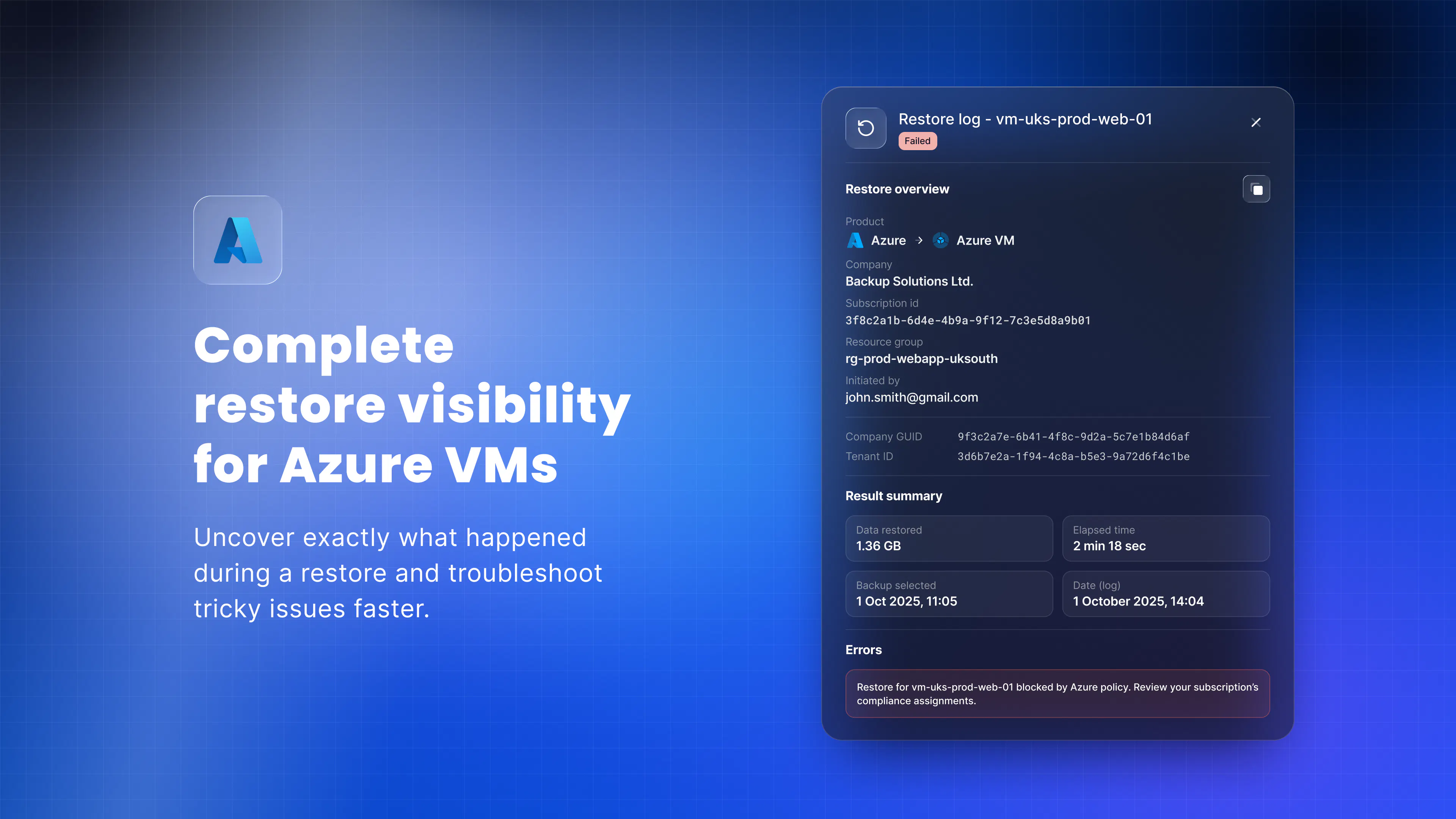
You can now open a detailed restore log for any Azure Virtual Machine, so you can see exactly what happened during a restore instead of piecing it together yourself.
When a restore succeeds, you get confirmation that everything completed as expected. When it fails, you get the reason in plain language, along with a clear sense of what to do next.
What's included
Each restore log pulls the full picture into a single panel:
A clear status at the top of every log, so you know straight away whether a restore succeeded or failed.
A restore overview covering the job's key context, including subscription, resource group, tenant, and who ran it.
A result summary with key metrics like data restored, elapsed time, and the backup point used.
Plain-language errors that tell you why a restore failed and where to look.
One-click copy of the key details for notes or a support ticket.
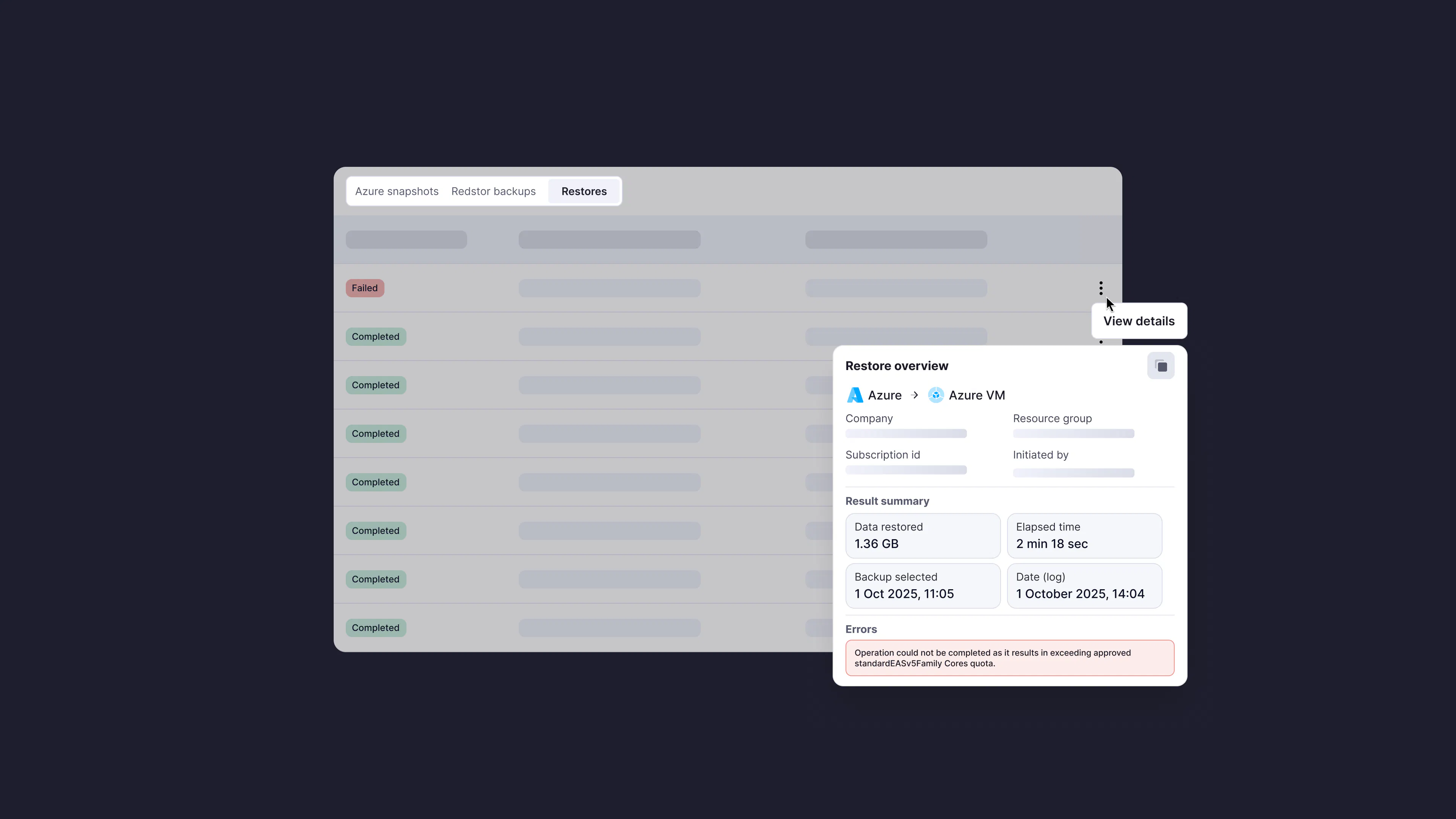
The panel keeps the overview, the result summary, and any errors in separate sections, so you can confirm a clean recovery at a glance or pinpoint a problem the moment it happens. For example, if a restore is blocked by an Azure policy, the log tells you directly and points you to your subscription's compliance assignments, so you know exactly where to start.
To open a restore log, go to the Restore tab for an Azure VM and select View details next to any restore.
For more details, see Recovery troubleshooting in the knowledge base.
We'd love your thoughts
Now that Azure VM restore logs are available, we'd like to know:
Has this made it easier to understand and troubleshoot restore failures?
Have you encountered any restore errors where the information provided wasn't enough to understand what went wrong or what to do next?
Please share your feedback in the comments below, or reach out to our team directly.
